Security Audit
This document explains the features and usage of the Security Audit detail page.
The Security Audit Detail Page is generated when a security audit is requested and can be accessed from the target user's detail page. Users can view detailed audit information, submit a new request, or reapply for an audit.
Security Audit Request (Creation) Flow
- When an event occurs, the captured image is hidden by default due to security policies.
- On the Event Detail Page, click the image you wish to view and fill out the security audit request form.
- Submit your request by entering the target period, audit time, and the reason for audit.
- Once submitted, viewing access is granted for the target period during the audit time, allowing access to the requested user's images.
- Any viewed images and the events containing them are recorded in the Security Audit Detail Page.
Security Audit Information
This section provides basic information related to the security audit, including the audit administrator, audit duration, reason for audit, audit target, and the target period. Clicking on a username will navigate to the detailed page for that user.
Audit Time and Target Period
- Audit Time: The duration during which the security audit will be conducted. You can select between 1 and 24 hours at the time of request. Once the time expires, the images will be made private.
- Target Period: The time range of the events to be analyzed during the audit. Only events and suspicious activities within this period can be reviewed. Events outside of this range are not accessible due to permission restrictions.

Security Audit List
This section displays the list of events included in the security audit. If images from events or suspicious activities were accessed during the audit, those events will appear in the list along with access timestamps. Clicking an event will take you to its detailed page.

Security Audit Images
This section shows the images viewed during the security audit. When an image is accessed from an event or suspicious activity detail page, it will appear in the audit image list. Images are only viewable while the audit time is valid; once expired, they are made private for security reasons.
Q. The audit time is still valid, but I can't see the images!
A. Only the administrator who initiated the security audit can view the images. If you need access, you must either request a new audit for the same target period or submit a separate request from the event or suspicious activity page.
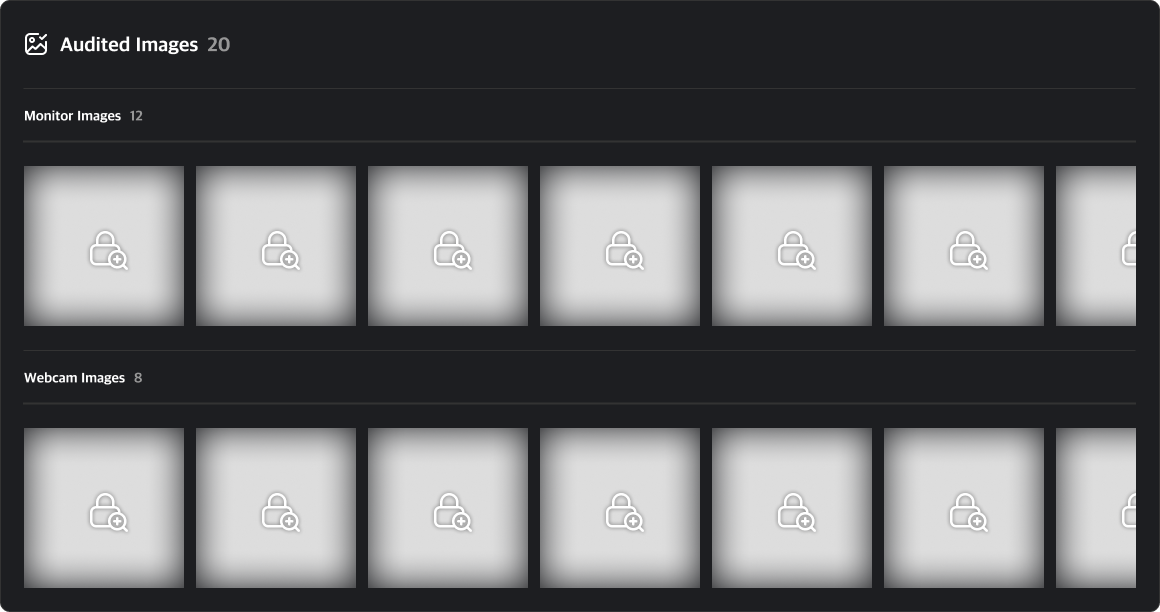
If you wish to view an image that has already been made private, you can click on it to submit a re-request for audit. Note that the target period cannot be modified during a re-request — it will be pre-filled with the original period. Once the re-request is approved, a new audit record will be created containing the previous audit history, and the image will be accessible from the new audit detail page.
- Re-request Audit - Date Selection Disabled

Q. I want to change the target period!
A. Re-requests are intended to allow access to expired audit images and include the history of the previous audit. Therefore, the target period cannot be changed. If you wish to audit a different period, please submit a new audit request instead.