Screen Capture Control Rules
This page explains each feature in the MonitorDog Admin’s Captuer Control Rules configuration section.
Screen Capture Control Settings define how MonitorDog responds when a screenshot or screen recording is attempted. You can choose the strictness of the response—logging the event only, locking the screen, or disabling detection entirely. You can also specify which capture methods to detect (OS keyboard shortcuts or screen-capture software) and manage the list of monitored applications.
These rules are applied at the organization level by default. Individual user-level customization is available under User Details → Manage User → Screen Capture Control Rules.
Q. What does it mean when a setting is applied organization-wide?
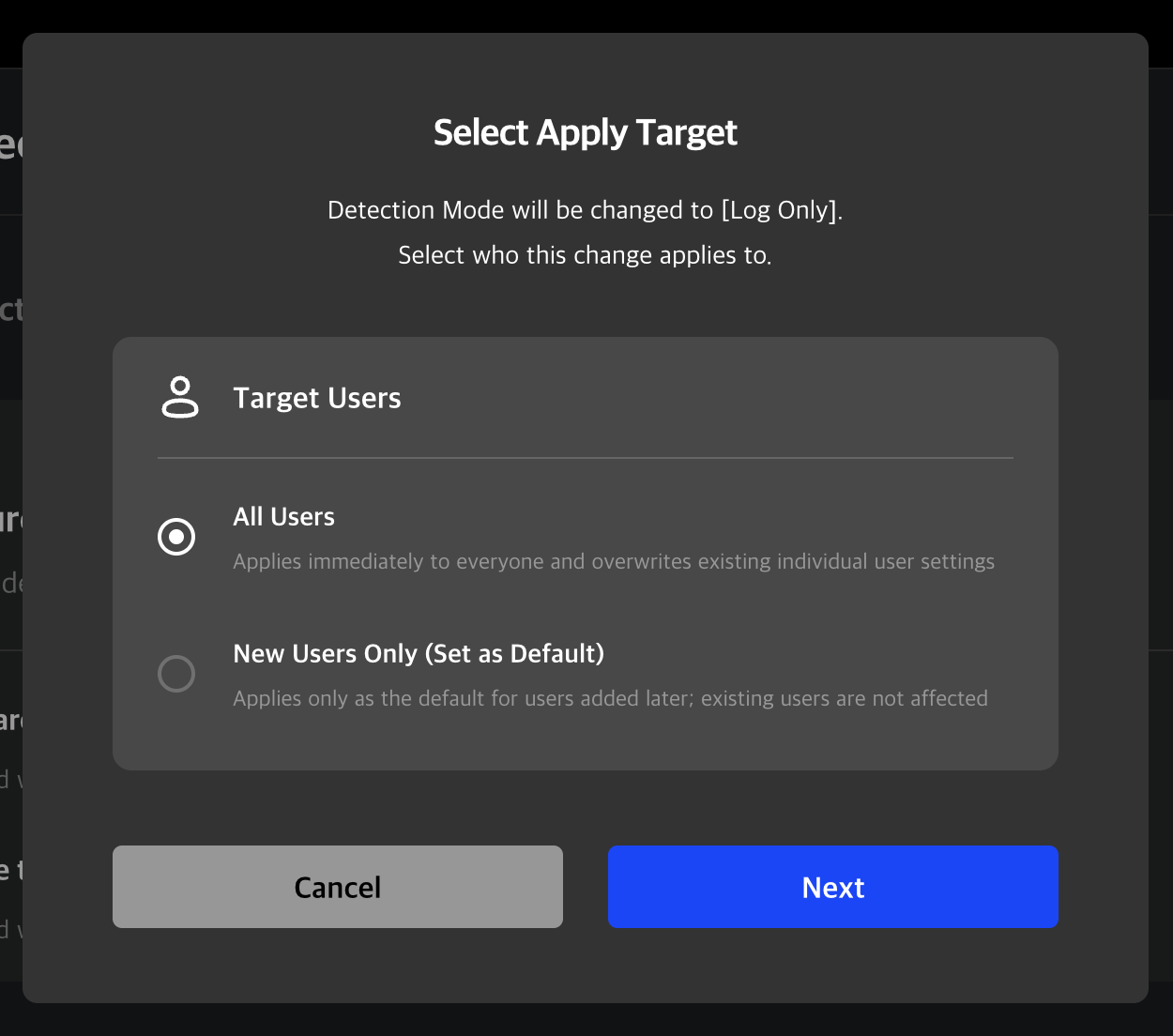
A. When modifying settings, two application options are provided:
All Users: Applies immediately to everyone and overwrites existing individual user settings.
New Users Only : Applies only as the default for users added later; existing users are not affected.
If you want to unify settings for all existing users, choose Apply to all users. If you prefer to keep current user settings and apply the new configuration only to newly added users, choose Apply to new users.
Screen Capture Control Mode
Configure the policy to apply when a capture attempt is detected. There are four available modes, each determining whether logs are recorded and whether the screen is locked.
Detection Mode
- Log Only: When a capture attempt occurs, only the connection and capture logs are saved. The screen does not lock.
- Auto Lock – Unlock By Admin: When a capture attempt occurs, the screen is automatically locked and a block notification is displayed. The blocked connection is recorded in the log, and the user can request an unlock from an administrator via the lock screen. The lock is released only after the administrator approves this request.
- Auto Lock – Unlock By User: When a capture attempt occurs, the screen is automatically locked and a block notification is displayed. The blocked connection is recorded in the log, and the user can unlock it themselves at any time.
- No Detection: Detection is disabled. All connections are allowed, no logs are saved, and the screen does not lock.
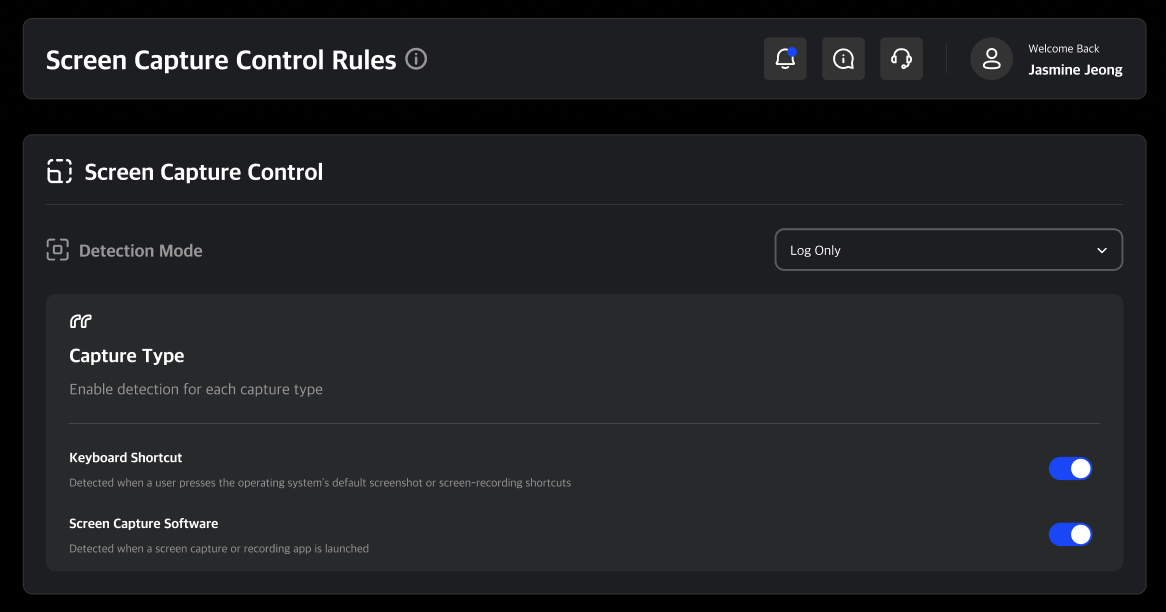
You can also enable or disable each capture type. When disabled, the corresponding capture event will not be detected; when enabled, it will be monitored.
Capture Type
- Keyboard Shortcut : Detected when a user presses the operating system’s default screenshot or screen-recording shortcuts
- Capture Tool : Detected when a screen capture or recording app is launched
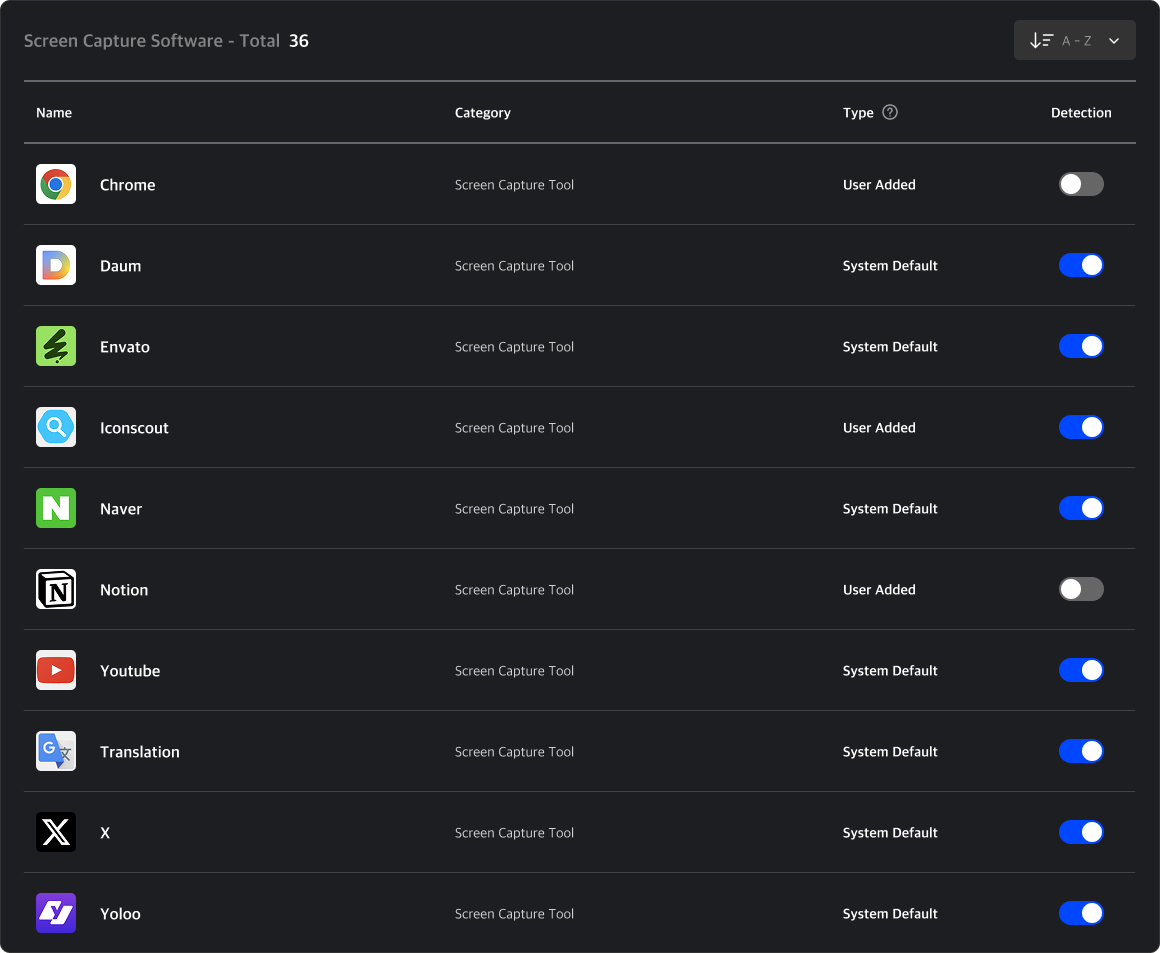
Capture Control Programs
This table lists the capture software registered by the MonitorDog system and by administrators. You can view the program names and icons, check whether detection is enabled, and toggle detection as needed. Changes made on this page are applied immediately across all users in the organization.
Q. A specific user needs screen capture for their role — what can I do?
A. Even if capture is restricted at the organization level, you can apply separate policies to individual users. Go to [User Details → Manage User → Screen Capture Control Rules] and configure the necessary policies or allowed programs for that user. User-level settings always take precedence over organization-level policies.