Device Control Rules
This page explains each feature of the Device Control Rules management page in the MonitorDog Admin console.
Device control settings define how MonitorDog responds when an external storage device is connected.You can choose how strictly to control storage usage, such as logging, locking the screen, or disabling detection entirely.
These settings are applied at the organization level by default.Individual settings can be customized per user in [User Details → Manage User → Device Control Settings].
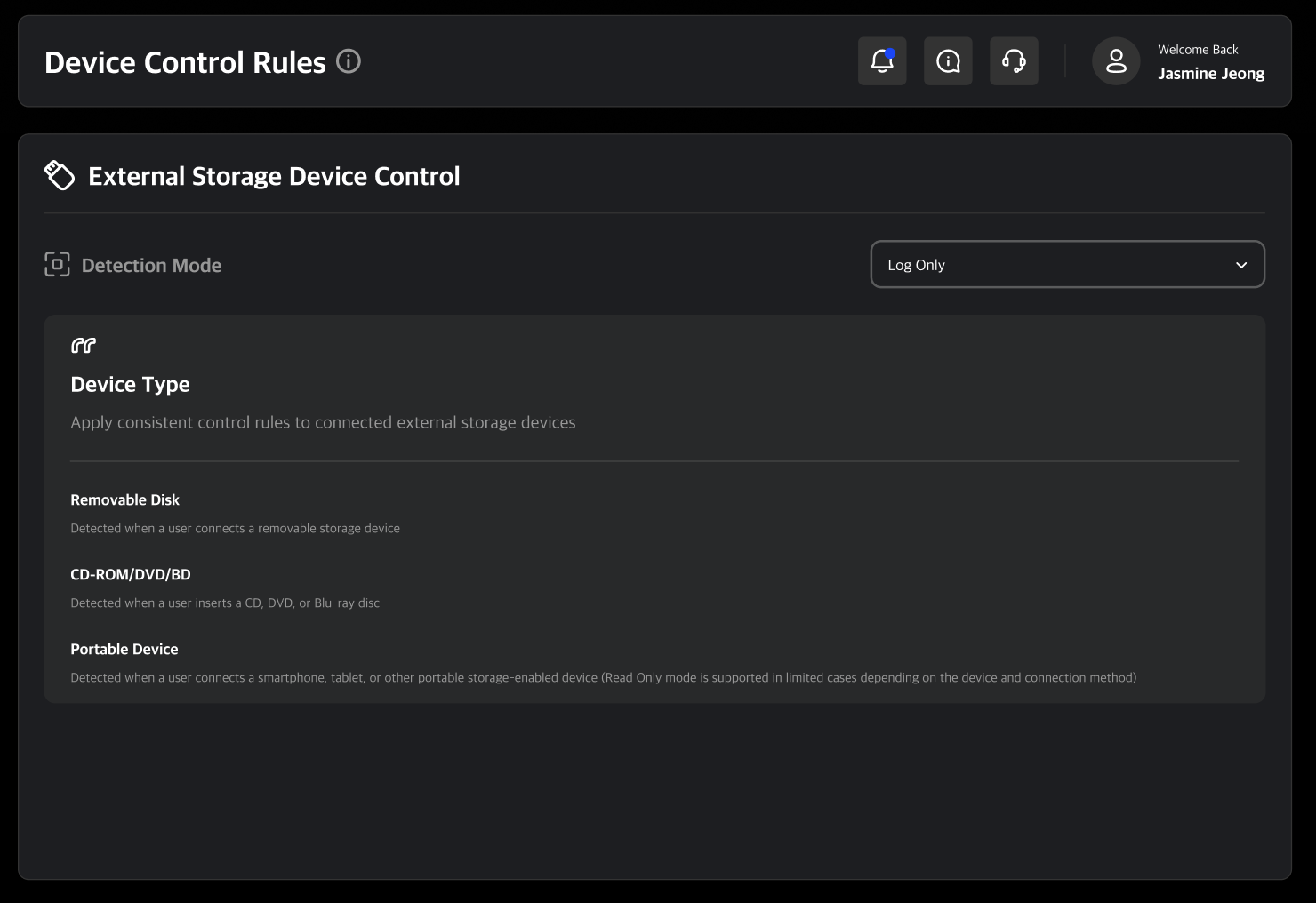
Detectable Device Types
Apply consistent control rules to connected external storage devices
- Removable Disk: Detected when a user connects a removable storage device
- CD-ROM/DVD/BD: Detected when a user inserts a CD, DVD, or Blu-ray disc
- Portable Device: Detected when a user connects a smartphone, tablet, or other portable storage-enabled device (Read Only mode is supported in limited cases depending on the device and connection method)
Detection Mode
- Log Only: When a device is connected, only the connection and file transfer logs are saved. The screen does not lock.
- Auto Lock – Unlock By Admin: When a device is connected, the screen is automatically locked and a block notification is displayed. The blocked connection is recorded in the log, and the user can request an unlock from an administrator via the lock screen. The lock is released only after the administrator approves this request.
- Auto Lock – Unlock By User: When a device is connected, the screen is automatically locked and a block notification is displayed. The blocked connection is recorded in the log, and the user can unlock it themselves at any time.
- Read Only: When a device is connected, the screen does not lock. File transfer is blocked, but files can still be read.
- No Detection: Detection is disabled. All connections are allowed, no logs are saved, and the screen does not lock.