User
This page explains the elements of the MonitorDog User Table and its corresponding user detail view.
You can view and manage the list of users, along with their related suspicious activities and event history.
User Table
Users are listed in order of registration date. Each row also includes user status and information.

Table Tabs
Click the tabs at the top to filter users by their current status.
✅ Tab Descriptions
- All: View all users
- Locked: Users who were locked due to suspicious or risky activities
- High Priority: Users marked as high-priority for closer monitoring
Invite & Bulk Update
-
Invite User
You can invite users by entering their email. A signup link will be sent to their email address.
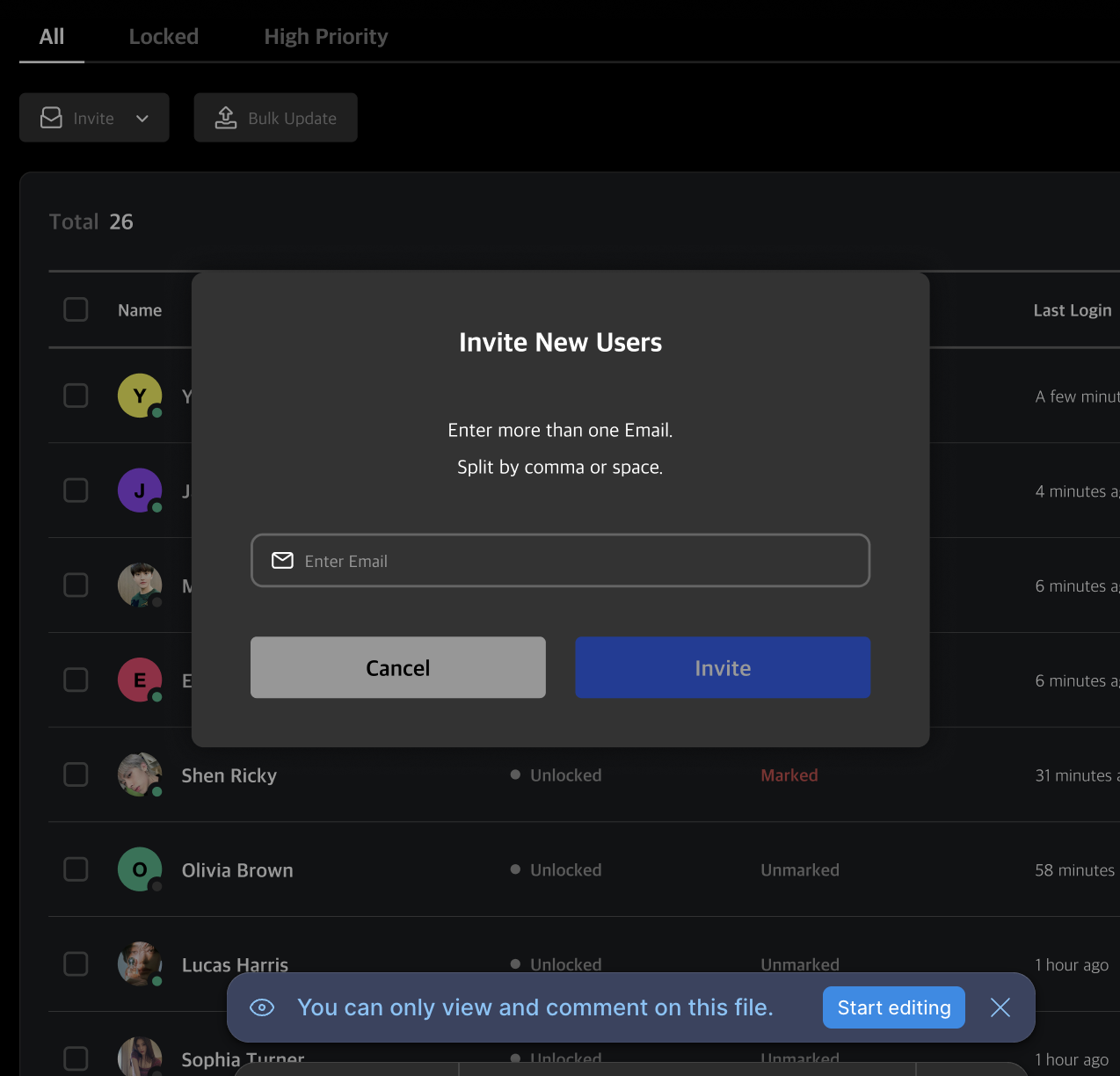
Q. Are invited users automatically admins?
A. No, users invited from this page are registered as regular users. They will have limited access to admin features. To grant admin access, assign them the Viewer role or higher later.
-
Bulk Update
Download a CSV file to batch update user information and re-upload to apply changes.
Q. When should I use this?
A. Bulk updates are useful when modifying user attributes like Department or Nationality for multiple users at once.

Search
Use the search bar to find users whose name or email matches the search term.
Q. What fields are used for search?
A. Both name and registered email address are used in the search criteria.

User Detail Page
Clicking a user row opens their User Detail Page, where you can view and edit user details, suspicious activities, and events.
User Info
View user profile and account-related information for MonitorDog.
Q. I don’t see an edit button—how can I update user info?
A. Only Editor or higher admins can edit user info.
If you're editing your own info, go to My Page.

Information Breakdown
- Today Risk Score: A score (0.0–9.9) that increases as events and suspicious activities are detected. Reset daily at midnight. Used by admins to quickly assess risk, but does not impose restrictions directly.
- Admin Role: One of five roles, each with different levels of access
- High Priority: A flag that marks the user as a high-priority case for closer observation
- Lock Status: Indicates whether the user’s device is locked (via Event Lock or Remote Lock)
- MFA: Multi-Factor Authentication status (Enabled/Disabled)
- Last Login: Timestamp of the user's most recent login
Admin Role & User Settings
You can assign or change the user’s admin role and manage their account.
⚠️ These features require Editor or higher permissions.
-
Assign Admin Role
Grant or revoke admin access for a user.
To make someone an admin, set their role to Viewer or higher.
To remove admin access, set their role to Limited.
Admin Role Details
Role Description Owner Full access to all features and settings Manager Can manage events, scenarios, users, organization, and blocked programs (includes Editor role) Editor Can modify user info and scenarios (includes Viewer role) Viewer Can view organization data (includes Limited role) Limited Can only view content without making changes Q. I can’t change user roles!
A. Permission changes can only be made to roles lower than your own. You cannot promote yourself to a higher role. If you require a higher permission level, please contact > an administrator with the appropriate authority.
-
User Management Tools
Perform actions directly related to the user’s agent and account.
⚠️ These changes apply immediately and should only be used when necessary.
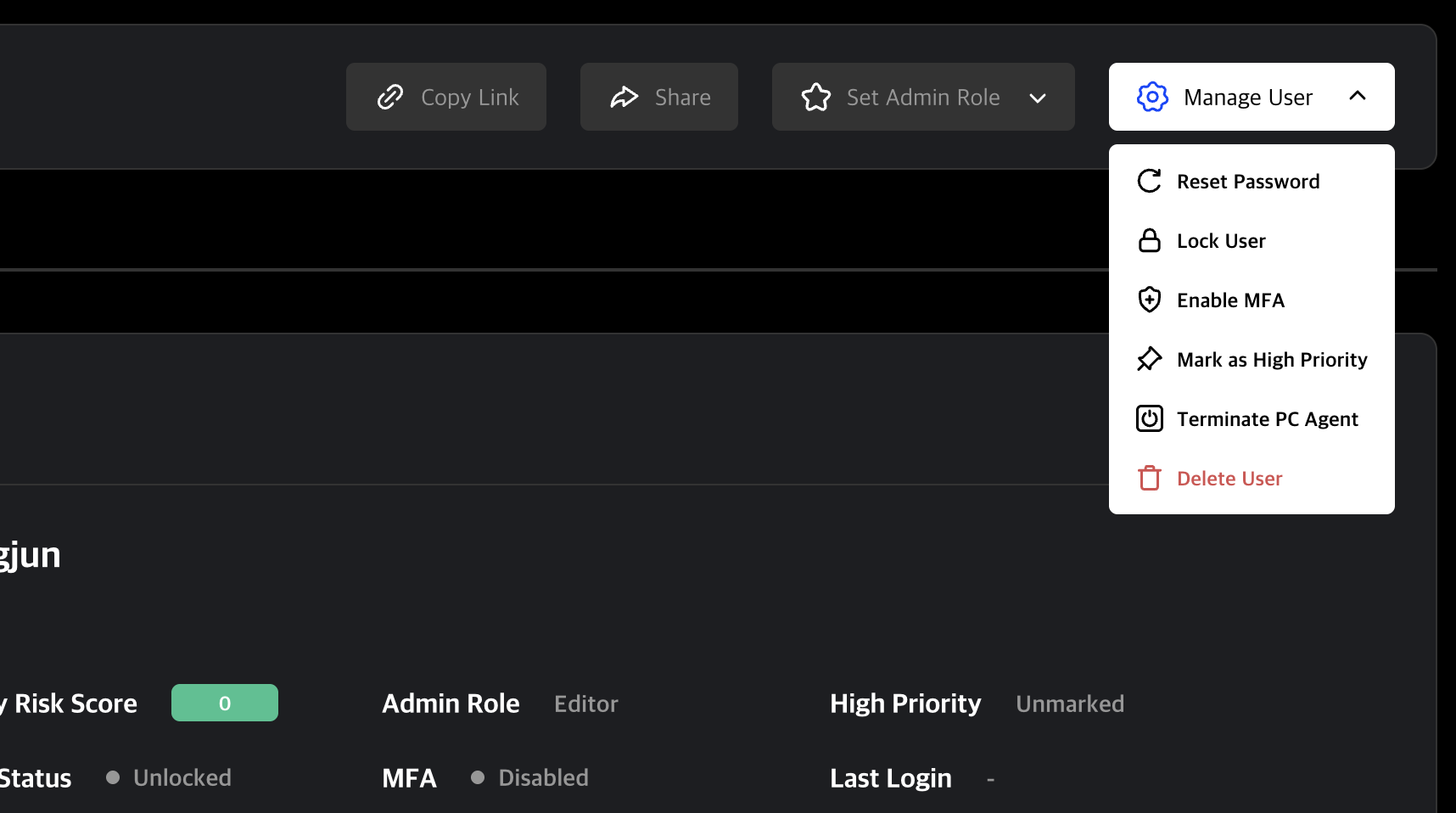
Available Actions:
- Reset Password: Resets the user's password
- Lock User: Toggle lock status. If locking, specify reason and lock type to apply a Remote Lock
- Enable MFA: Toggle Multi-Factor Authentication
- Mark as High Priority: Flag user for focused attention
- Terminate PC Agent: Force shutdown of user's MonitorDog Agent
- Delete User: Permanently delete the user
-
Edit User Info
Modify user profile details.

Suspicious Activity List
Shows unresolved suspicious activities for the user.
Click an item to view the Suspicious Activity Detail Page.

Event List
Shows user activity during a selected date range.
You can view a graph of detected events and risk scores, and click a specific date to inspect details.

Tabs
- All: View all activity
- Events: View event history
- Suspicious Activities: View suspicious activities only
You can access the detail pages for any event or suspicious activity by clicking their names.

History
This section logs admin actions and changes related to the user.
Q. When is history created?
A. History is logged when suspicious activities are generated or when an admin takes action on the user.
Admins can also leave comments manually to record context or instructions.
