Lock Overlay
This page explains the types of lock screens for the monitordog Agent.
The monitordog Agent secures the device through various types of lock screens. The activation status and type of lock are flexibly configured by an administrator in the monitordog Admin.
General Lock Overlay
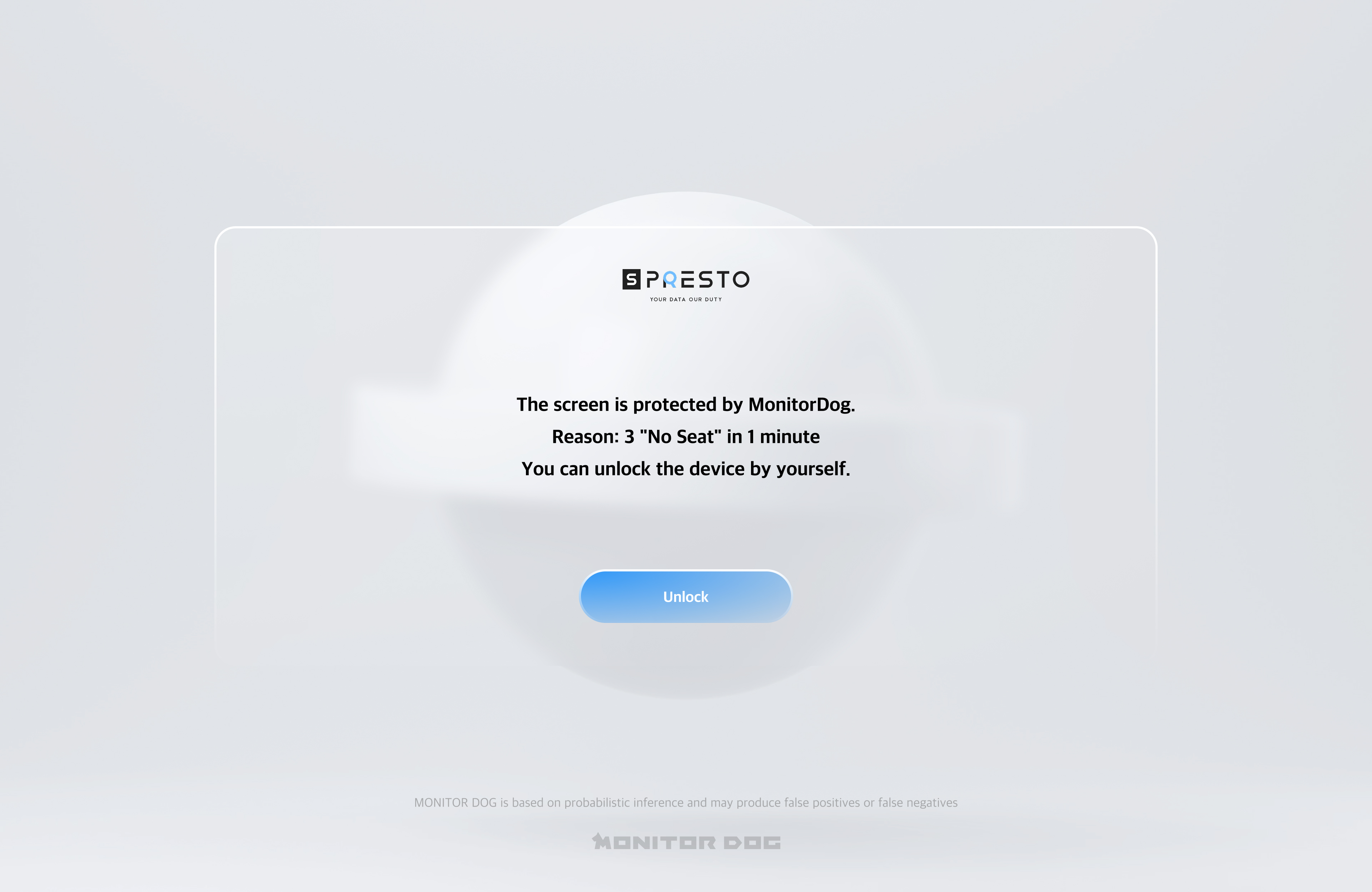
This lock screen is automatically activated when an event occurs
- Activation Point: Activated immediately upon the first detection of an event.
- Duration: Remains active until the corresponding event is no longer detected.
- Unlocking Method:
- The user can manually deactivate it by pressing the Unlock button.
- Automatically deactivates when the event is no longer detected.
Suspicious Activity or Remote Lock - User-Controlled Unlock
This lock screen is activated when suspicious activity occurs based on scenarios or when the lock is Remote Lock by an administrator.
- Activation Point: Upon detection of suspicious activity or Remote lock activation.
- Lock Type: The lock type configured in the monitordog Admin is applied.
- Unlocking Method: The user can directly unlock the device by pressing the Unlock button. (No administrator approval required).
Suspicious Activity or Remote Lock - Admin Approval Needed for Unlock
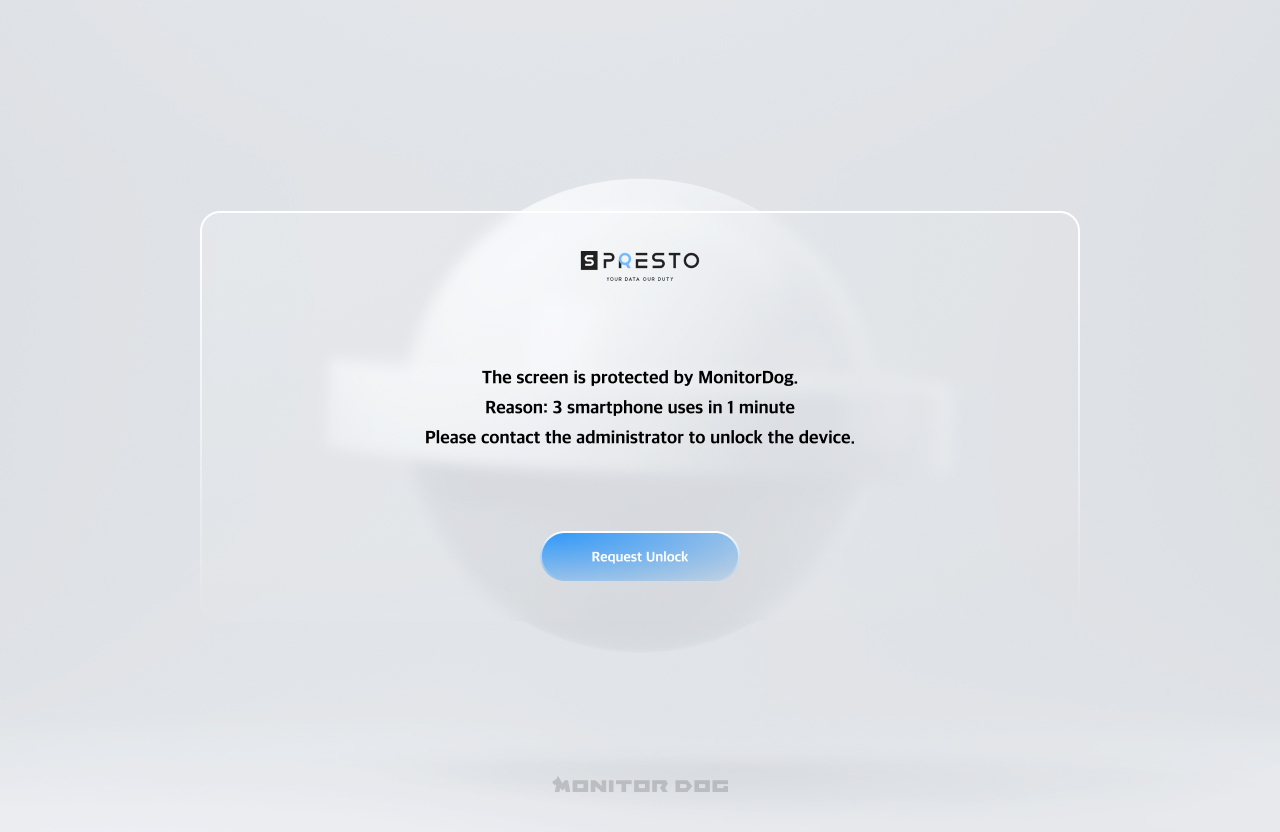
This lock screen is also activated upon suspicious activity or Remote lock, but the unlock procedure differs.
- Activation Point: Upon detection of suspicious activity or Remote lock activation.
- Lock Type: The lock type configured in the monitordog Admin is applied.
- Unlocking Method:
- The user must click the Unlock Request button to ask an administrator for lock removal.
- This request is sent as a notification to the administrator via the monitordog Admin portal.
- The lock is only finalized when the administrator manually unlocks the user via the monitordog Admin.
Password Input
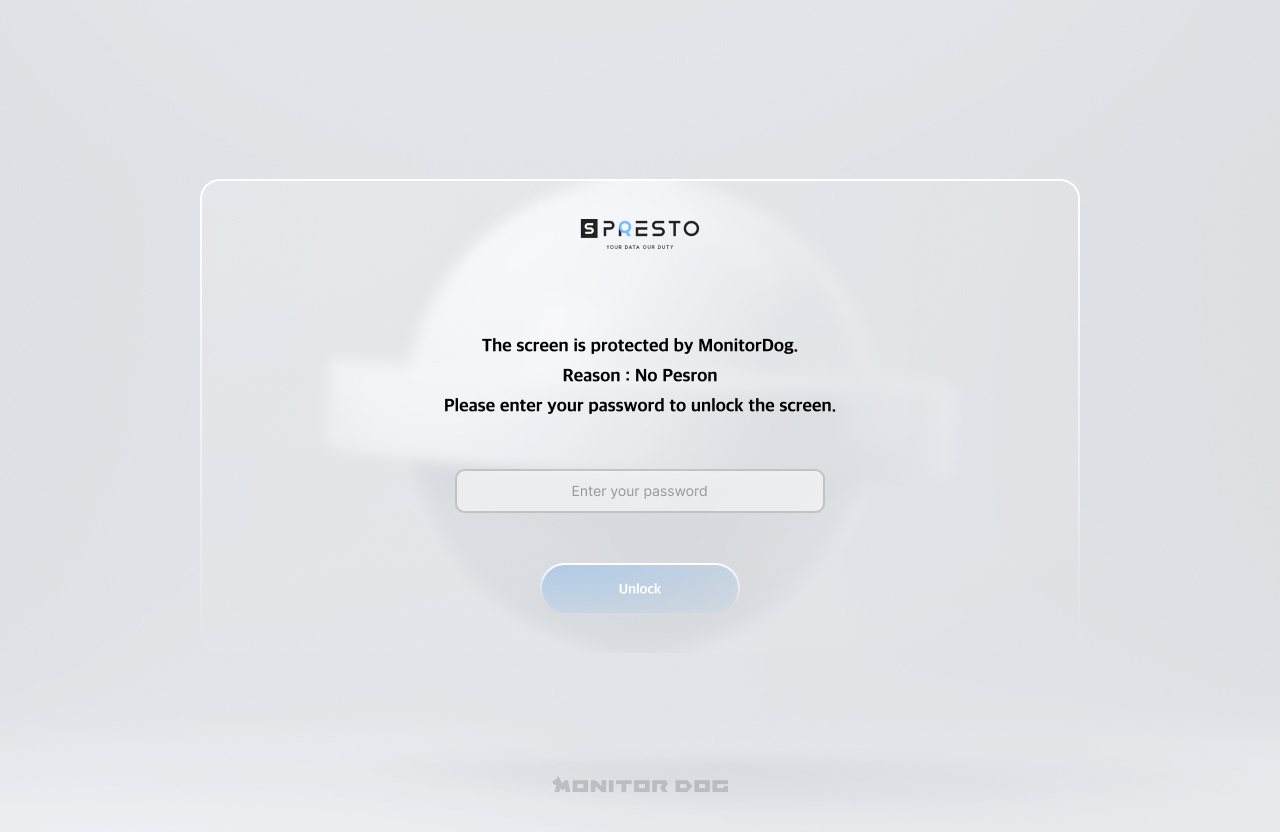
This lock screen is specifically activated when a No Person event occurs (indicating absence from the device).
- Activation Condition: This lock is only activated if the 'Enalbe PW on No Person Unlock' option is enabled in the monitordog Admin.
- If Option Disabled: The General Lock Overlay will be activated instead.
- Unlocking Method: Unlocking is possible by entering the password for the corresponding account.
- Unlock Restriction:
- If the password is entered incorrectly 5 consecutive times, a 30-minute unlock restriction time is set.
- The administrator can reset the user's restriction time in the monitordog Admin. (However, the restriction time may persist due to system factors even after an administrator reset.)
Demo Lock Overlay
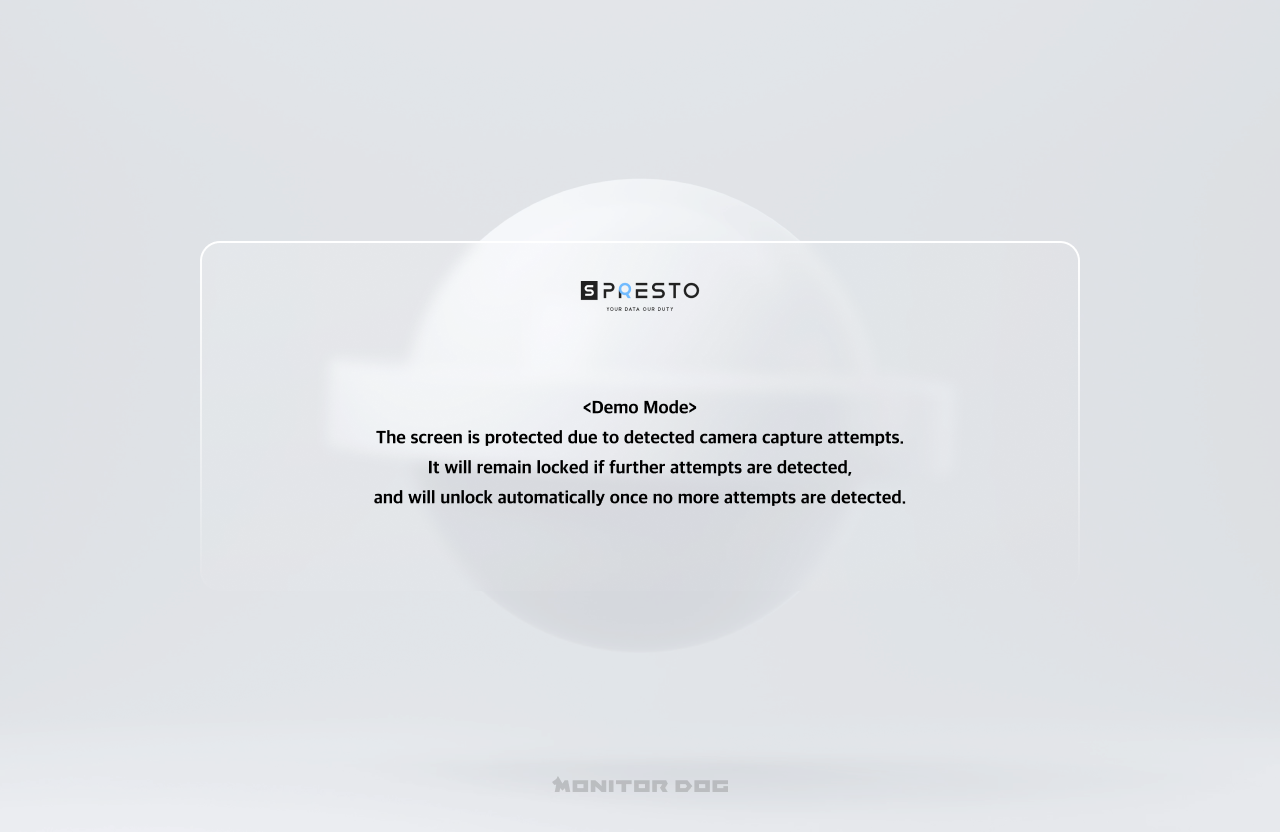
This lock screen is only activated in Demo Mode. It is similar to the General Lock Overlay but does not include an Unlock button.
- Activation Point: Activated immediately upon the first detection of an event.
- Duration: Remains active until the corresponding event is no longer detected.
- Unlocking Method:
- Automatically deactivates when the event is no longer detected.