Manual Update
This page explains the features of the Manual Update window in the MonitorDog Agent for Windows.
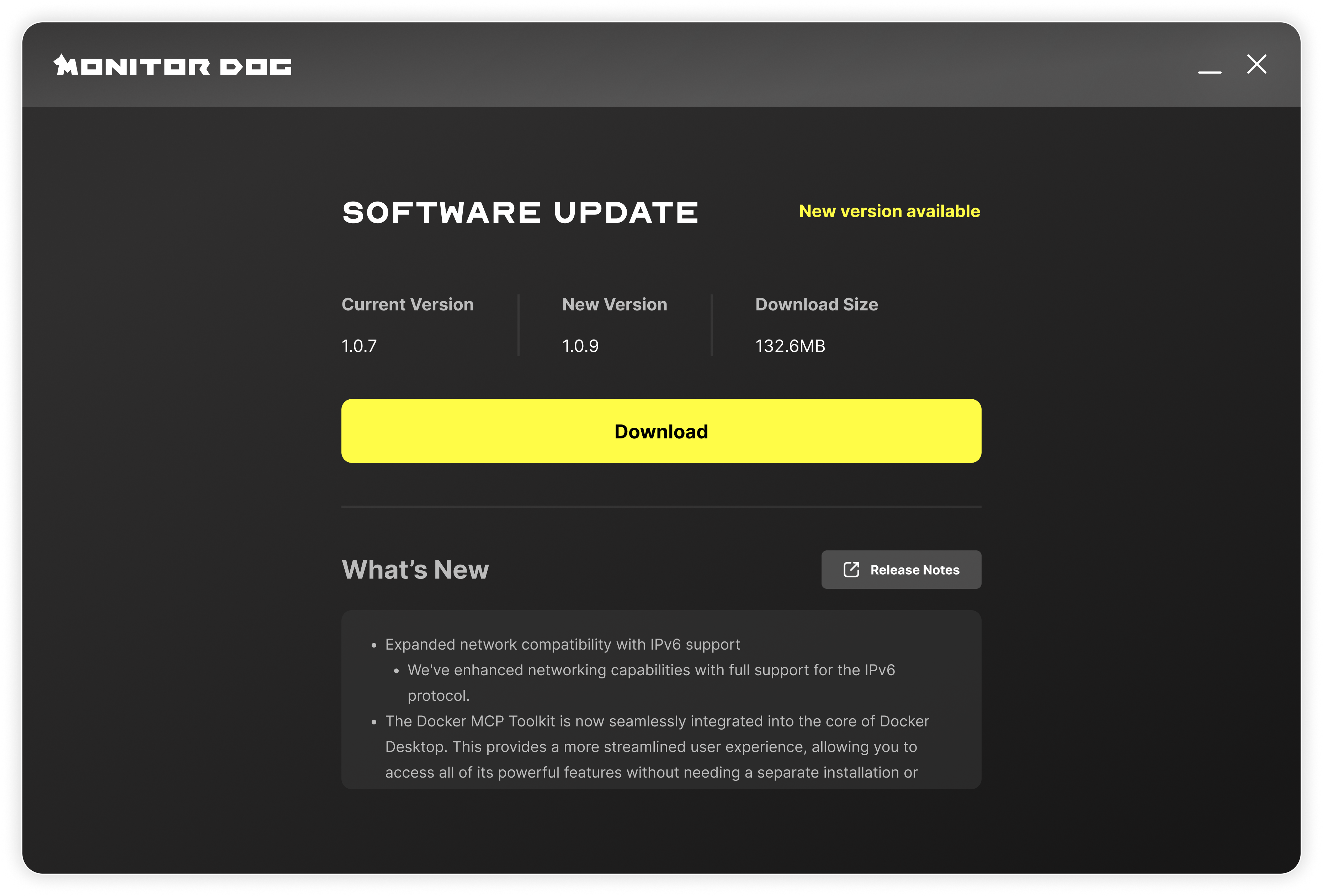
When the version of MonitorDog currently in use is lower than the latest available version, you can access the update window through the tray menu.
In this window, you can view the following information:
- Installed MonitorDog version
- Latest MonitorDog version
- File size of the latest MonitorDog installer
- Detailed update notes
If an update is available, you can click the Download button to download the latest version.
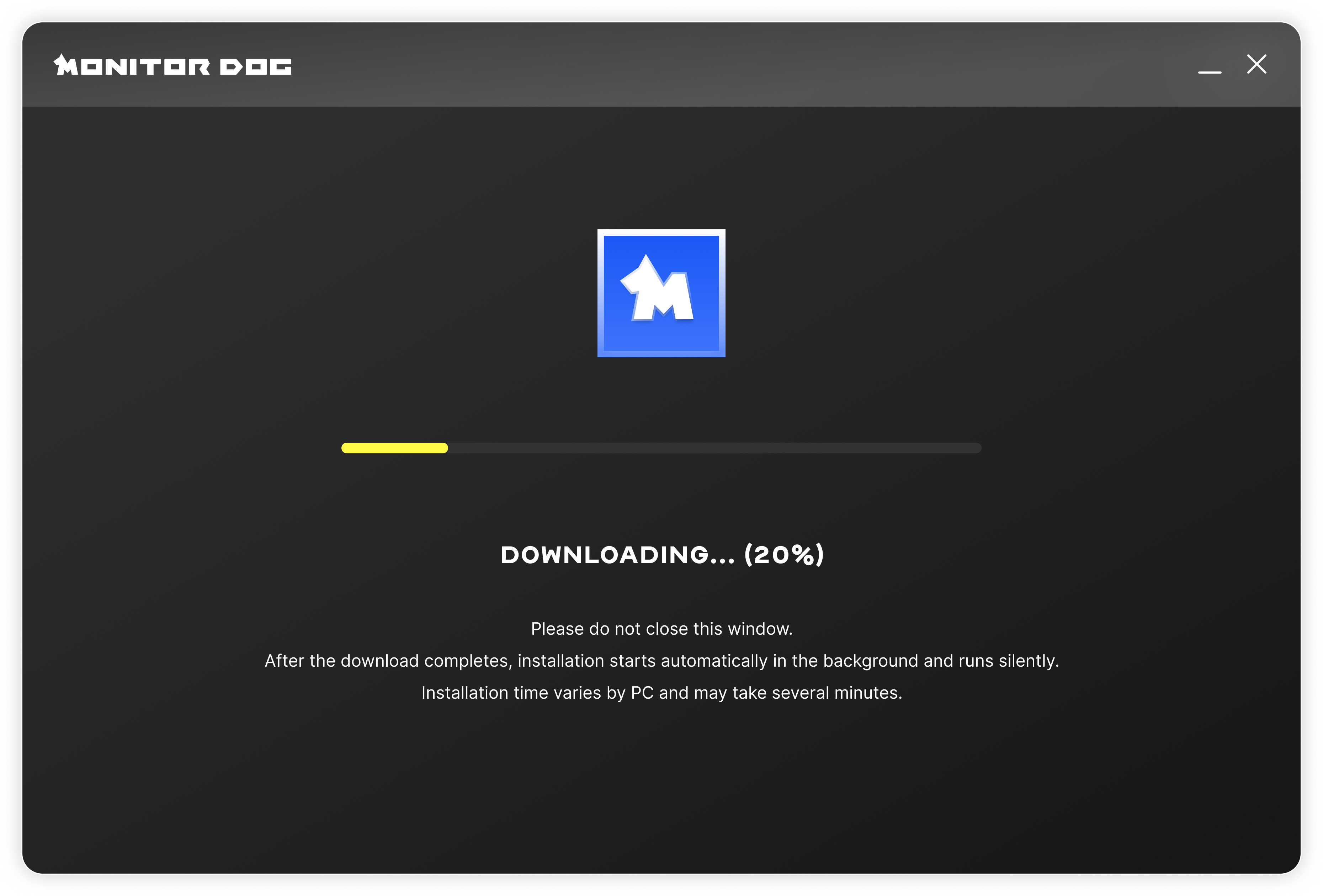
Once the download is complete, the following steps proceed automatically:
- Removal of the existing version
- Installation of the latest version
- Automatic restart of MonitorDog after installation
During the update process, MonitorDog temporarily shuts down and automatically restarts once the installation is complete.
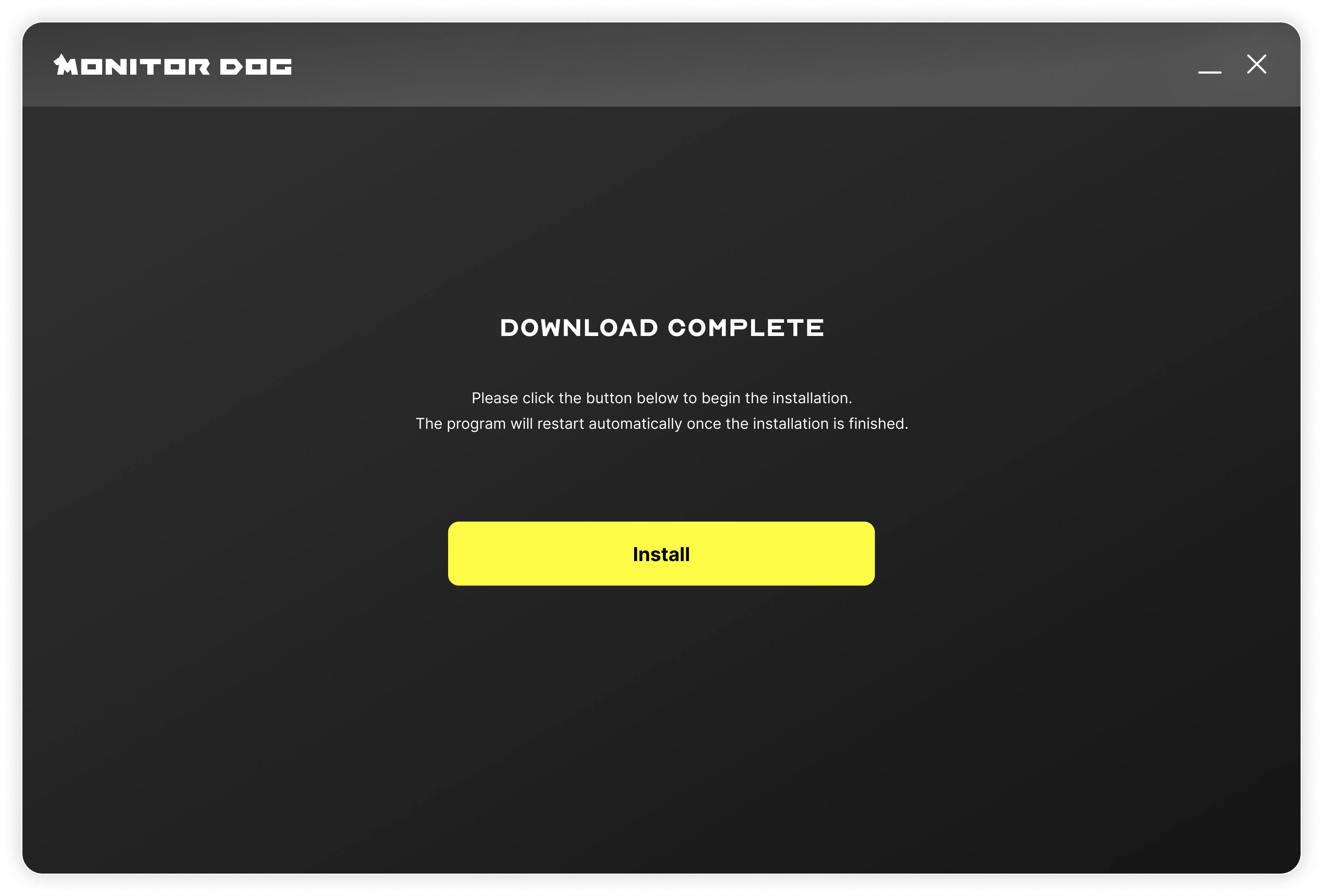
You do not need to click the Install button separately; installation proceeds automatically.
Q. The update is too slow!
A. Download and installation speed may vary depending on your network conditions or device performance (CPU/memory usage).
This is normal behavior, so please wait until the update completes.